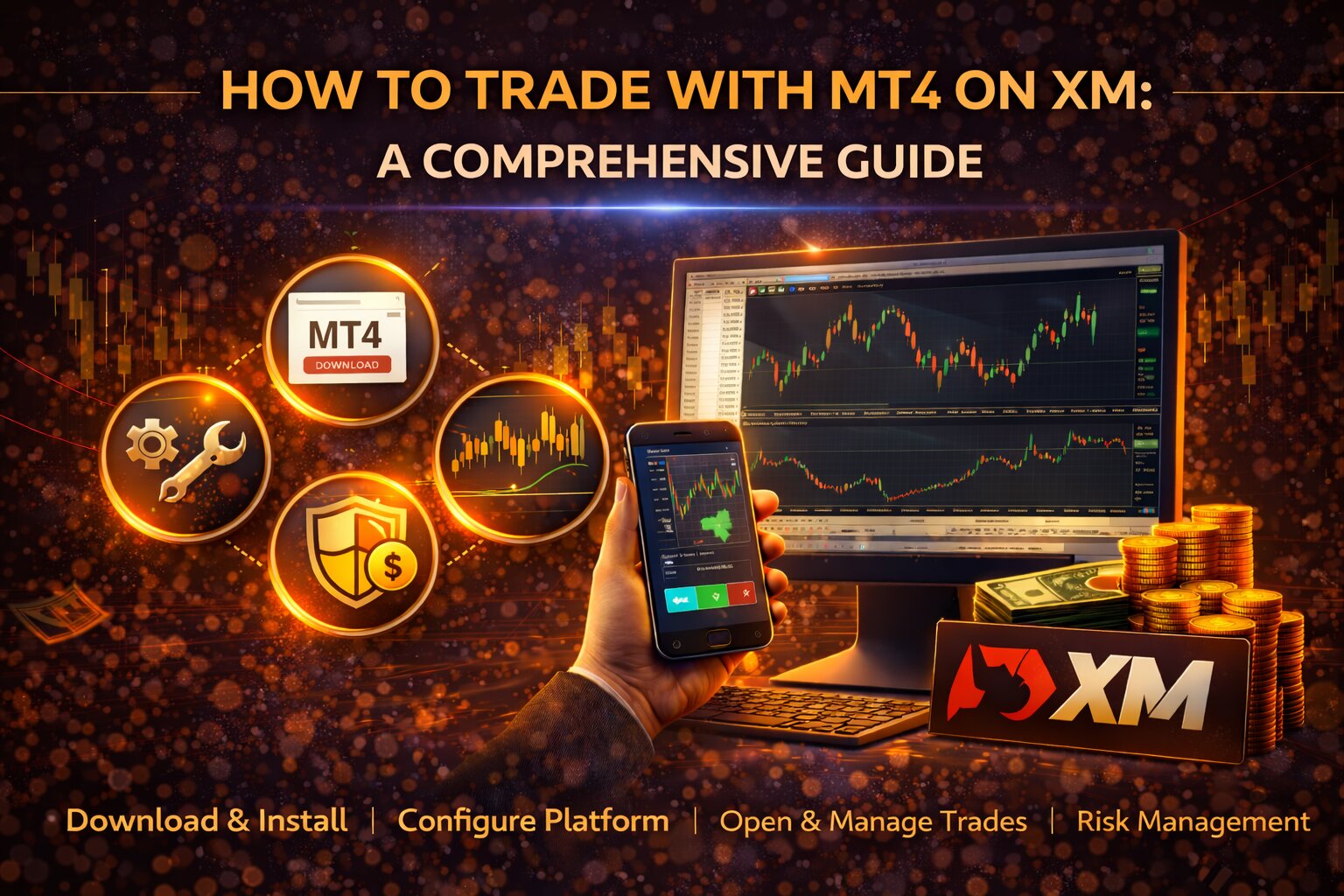
How to trade with MT4 on XM: A Comprehensive Guide
Introduction
MetaTrader 4, or MT4, is one of the most popular trading platforms for forex and CFD trading. XM supports MT4 on desktop and mobile, making it accessible for different types of traders.
This guide reviews XM's MT4, how to download MT4, log in with your XM account, place trades, manage orders, and use the platform’s key features.
1. Download and Install MT4
To start trading with XM on MT4, first download and install the platform.
For desktop, visit the official XM website, go to the MT4 Platform section, and download the version for Windows or macOS.
After the file is downloaded, open it and follow the installation steps.
For mobile, search for MetaTrader 4 in the App Store or Google Play Store. You can also use the XM website to find the mobile download option.
2. Open the MT4 Platform and Log in to Your XM Account
After installing MT4, open the platform and log in with your XM account details.
On the desktop, enter your XM account number, password, and the correct server name. You can usually find the server in your XM welcome email or account area.
For example, live accounts may use an XM-Real server, while demo accounts may use an XM-Demo server.
On mobile, open the MT4 app, choose Login to Trade Account, search for XM, and enter your account number, password, and server.
Make sure the server matches your XM account. If the wrong server is selected, the login may fail.
3. Exploring MT4 Features
After logging in, you will see the MT4 interface. The main sections are simple once you understand what each part does.
Market Watch shows the assets available for trading, such as forex pairs, commodities, metals, and indices. The Chart Window shows live price movement for the selected asset. You can open several charts at the same time and apply indicators or drawing tools.
MT4 also allows you to change timeframes, from short-term charts like M1 to longer-term charts like daily, weekly, or monthly. You can add indicators such as Moving Averages, RSI, MACD, and Bollinger Bands from the Insert menu or toolbar.
To place a trade, click New Order or press F9. Then choose the asset, trade size, order type, stop loss, and take profit.
A Market Order opens immediately at the current price. A Pending Order opens only when the market reaches your selected price.
Open trades can be managed from the Terminal window at the bottom of the platform. From there, you can view balance, margin, open positions, and close or modify trades.
4. Customizing MT4
MT4 can be customized based on your trading style.
You can change chart colors and layout by right-clicking on the chart and selecting Properties.
You can also save your preferred chart setup as a template. This is useful if you use the same indicators or layout often.
Price alerts can also be added to help you monitor important levels without watching the chart constantly.
5. Monitoring and Closing Trades
To monitor active trades, use the Terminal window at the bottom of MT4.
This section shows your open positions, account balance, margin, profit or loss, and order history.
To close a trade, right-click the active position and select Close Order.
You can also modify stop loss and take profit levels from the same area.
6. Using XM’s Tools & Features
XM also provides extra tools that may be useful for MT4 users.
XM WebTrader allows users to access the trading platform from a web browser without installing software.
XM VPS may be useful for traders who use Expert Advisors, also known as automated trading robots. A VPS can help keep automated strategies running continuously.
Availability of these tools may depend on account type, location, and eligibility.
Conclusion
MT4 gives XM users access to charts, indicators, order types, and trade management tools. Before trading with real money, it is better to practice on a demo account and understand how the platform works.
Trading involves risk, so use proper risk management, set stop loss levels when needed, and avoid placing large trades before you are comfortable with the platform.