How to trade with MT5 on XM: A Comprehensive Guide
Introduction
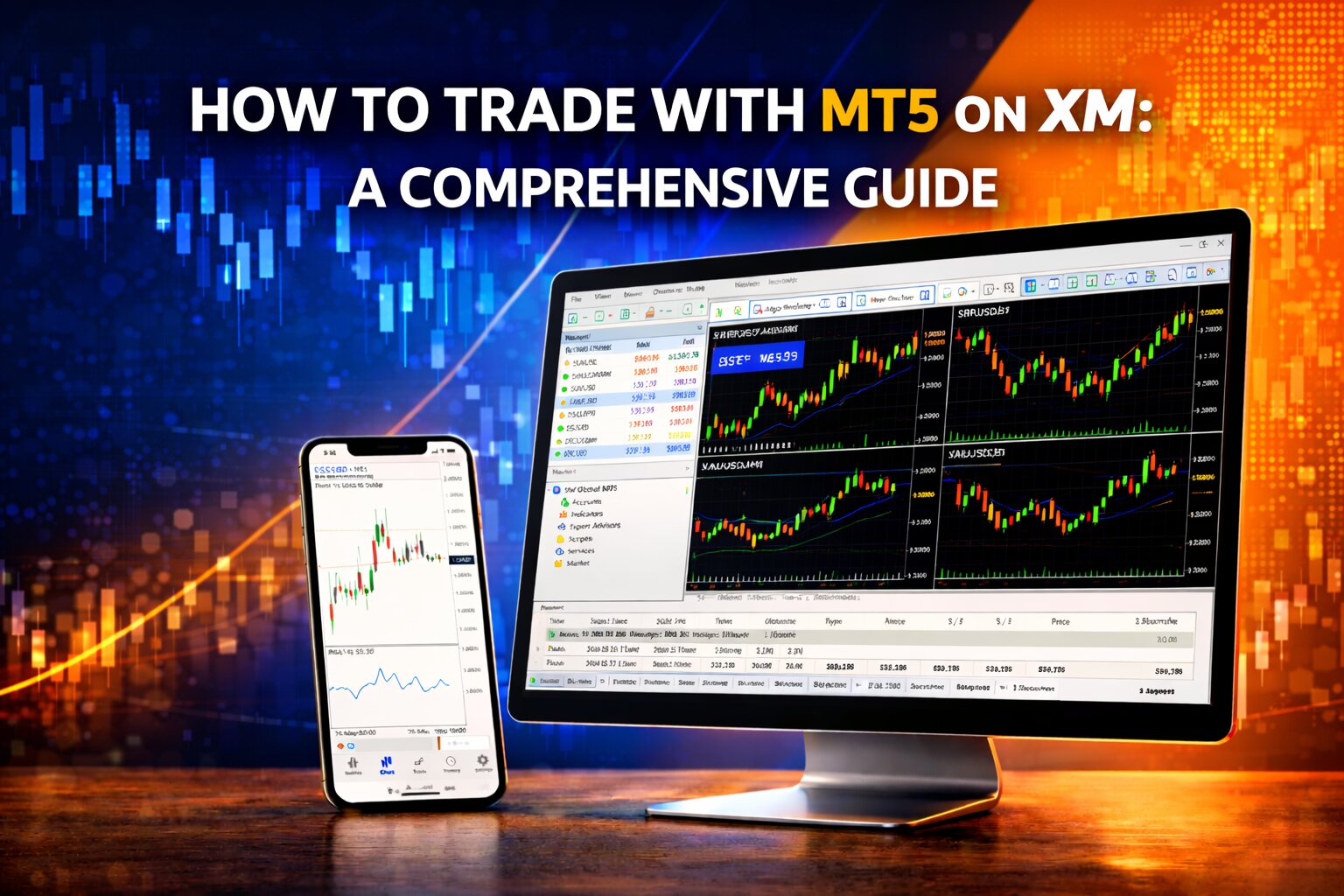
MetaTrader 5, or MT5, is a trading platform used for forex, commodities, indices, and other financial instruments. XM users can use MT5 to analyze markets, place trades, manage orders, and test strategies.
This guide reviews XM's MT5, how to download, log in with an XM account, and use the platform’s main features.
1. Download and Install MT5
To start, download MetaTrader 5 from the official XM website or from the app store on your device.
For desktop, visit the XM website, go to the trading platforms section, choose MetaTrader 5, and download the version for Windows or Mac.
After the file is downloaded, open it and follow the installation steps.
For mobile, search for MetaTrader 5 in the App Store or Google Play Store. Install the app and open it on your device.
2. Log in to Your XM Account
After installing MT5, open the platform and log in with your XM trading account details.
On the desktop, enter your XM account number, password, and server name. The server may be something like XM-Real for live accounts or XM-Demo for demo accounts.
On mobile, open the MT5 app, choose Login to Trade Account, search for XM, and enter your account details.
Make sure the server matches the details sent to you when you opened your XM account.
3. Explore the Main MT5 Features
MT5 includes several tools for market analysis and trade management.
The Market Watch window shows available instruments such as forex pairs, commodities, stocks, and indices.
The Chart Window displays real-time price movements. You can open multiple charts and change the timeframe, chart type, and indicators.
MT5 also includes technical indicators such as Moving Averages, Bollinger Bands, MACD, and RSI.
You can also use drawing tools, trendlines, channels, and shapes to analyze price movement more clearly.
4. Place a Trade on MT5
To place a trade, open the Market Watch window and select the asset you want to trade.
Right-click the asset and choose New Order.
In the order window, choose your trade size, order type, stop loss, and take profit.
A market order opens immediately at the current price. A pending order opens only if the price reaches your selected level.
After checking the details, click Buy or Sell to place the trade.
5. Manage and Close Trades
You can manage open trades from the Terminal or Trade section at the bottom of the MT5 platform.
This area shows your open positions, balance, margin, profit or loss, and order history.
To close a trade, right-click the open position and choose Close Order.
You can also modify stop loss and take profit levels from the same section.
6. Use XM Tools with MT5
XM may provide additional tools for MT5 users, depending on account type and eligibility.
For example, XM VPS can be useful for traders who use Expert Advisors, also known as automated trading robots.
XM also provides educational materials, market analysis, webinars, and platform tutorials for users who want to learn more.
7. Customize MT5
MT5 can be customized based on your trading style.
You can change chart colors, save templates, add indicators, and set price alerts.
Templates are useful if you use the same indicators or chart layout often. Alerts can help you track important price levels without watching the chart constantly.
Conclusion
MT5 gives XM users access to charting tools, order types, indicators, and trade management features. Before trading with real money, it is better to practice on a demo account and become familiar with the platform.
Trading involves risk, so always use proper risk management and avoid placing large trades before you understand how the platform works.